i been working on this one room for a few weeks now an nothing i do seems to be working as in i cant submit it, it keeps telling my my room is to big but i have shrank every texture to below what it wants an showen size wise as in if it calls for a 256 x 256 i shink the texture to a 250 x 250 an yet it still isn't letting me submit it an still telling me its to big when all textures are below the textures sizes, the room im working on is #15024174 H4K Double Duce v2. im not sure what im doing wrong this has happened to two other rooms that i cant get back up cause it went below the line an i forgot to write down the room number to pull it back up so haven to remake the room again... here is the pic of the room im currently working on that im having issues submitting ive even cleared cache an updated imvu an its still not letten me submit.
0 Votes
2 Comments
Sorted by
LestatDeLioncourtposted
about 1 year ago
Hi Kylee, Texture materials need to be optimized to prevent crashing in the client and to keep it fast.
The first thing to do when placing material textures is to make sure they follow the material texture rules. There is something called the "power of 2" and the "power of 4". These can get confusing but they can be simplified.
Basically, the pixel sizes for textures should be combinations of 4, 16, 32, 64, 128, 256, or 512 per side. For example, 64×128, 256×256, 256×512 etc. Do not use irregular sizes (example: 133×133) While "power of 2" is the requirement for texture dimensions in many cases, "power of 4" can arise in specific scenarios. For instance, some texture compression formats, like DXT, require side lengths that are multiples of 4.
Just stay with the basic sizes and keep them equal or less than 512x512 and, textures with dimensions that are 2, 4, 8, 16, 32, 64, 128, 256, and 512 pixels in height or width.
After you have your material following the Rules... Use a good file format style of .PNG or .JPG. Other file formats seem to be higher is Kb Weight. I know other artists who use other formats but they are very well experienced in making these formats look and weigh, well.
When you save your prepared material, use the "Save As" or "Export As" option in your graphic editor and optimize your materials. Most all graphic editors allow you to optimize the Kb Weight when saving the graphics. Save as, Export As or save for Web Use, etc. You will need yo Google how this works for your editor.
More references in the Creator Education Center. Here is one and Hereis another... Videos for GIMP material optimization can be found by searching YouTube and other places...
~Enjoy
0 Votes
A
Ashleyellenposted
about 1 year ago
Hello, I make my size 512 for each textures in case
i been working on this one room for a few weeks now an nothing i do seems to be working as in i cant submit it, it keeps telling my my room is to big but i have shrank every texture to below what it wants an showen size wise as in if it calls for a 256 x 256 i shink the texture to a 250 x 250 an yet it still isn't letting me submit it an still telling me its to big when all textures are below the textures sizes, the room im working on is #15024174 H4K Double Duce v2. im not sure what im doing wrong this has happened to two other rooms that i cant get back up cause it went below the line an i forgot to write down the room number to pull it back up so haven to remake the room again... here is the pic of the room im currently working on that im having issues submitting ive even cleared cache an updated imvu an its still not letten me submit.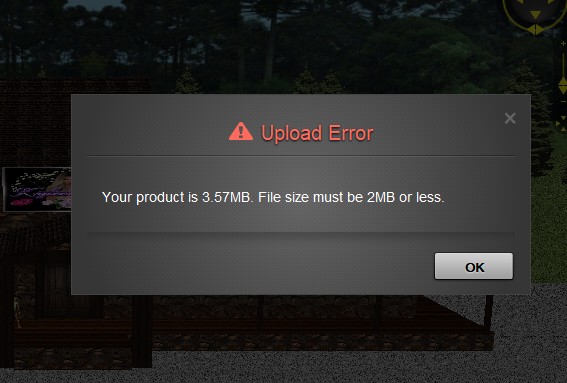
0 Votes
2 Comments
LestatDeLioncourt posted about 1 year ago
Hi Kylee, Texture materials need to be optimized to prevent crashing in the client and to keep it fast.
The first thing to do when placing material textures is to make sure they follow the material texture rules. There is something called the "power of 2" and the "power of 4". These can get confusing but they can be simplified.
Basically, the pixel sizes for textures should be combinations of 4, 16, 32, 64, 128, 256, or 512 per side. For example, 64×128, 256×256, 256×512 etc. Do not use irregular sizes (example: 133×133) While "power of 2" is the requirement for texture dimensions in many cases, "power of 4" can arise in specific scenarios. For instance, some texture compression formats, like DXT, require side lengths that are multiples of 4.
Just stay with the basic sizes and keep them equal or less than 512x512 and, textures with dimensions that are 2, 4, 8, 16, 32, 64, 128, 256, and 512 pixels in height or width.
After you have your material following the Rules... Use a good file format style of .PNG or .JPG. Other file formats seem to be higher is Kb Weight. I know other artists who use other formats but they are very well experienced in making these formats look and weigh, well.
When you save your prepared material, use the "Save As" or "Export As" option in your graphic editor and optimize your materials. Most all graphic editors allow you to optimize the Kb Weight when saving the graphics. Save as, Export As or save for Web Use, etc. You will need yo Google how this works for your editor.
More references in the Creator Education Center. Here is one and Here is another... Videos for GIMP material optimization can be found by searching YouTube and other places...
~Enjoy
0 Votes
Ashleyellen posted about 1 year ago
Hello, I make my size 512 for each textures in case
0 Votes
Login to post a comment