Share this article! Here's a short link you can use: http://im.vu/help859
IMVU Mobile allows you to access rooms on the go! Read on to learn about your room access, along with how you can purchase room bundles and control the different aspects of mobile rooms.
Room Management
You have the ability to access all the rooms you own and share under “My Rooms” in the Chat section. You also have Room Management settings along with the ability to set your room to Public or Private.
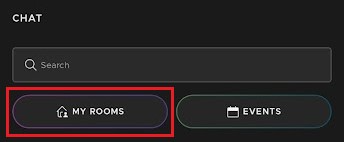
Private Rooms
These are all of the room shell products that you own. Private rooms can only be set to Public using a Chat Room Slot. Private rooms do not have any Room Management Settings for you to change the room name, and modify room properties. To do so, you must set the room to Public.
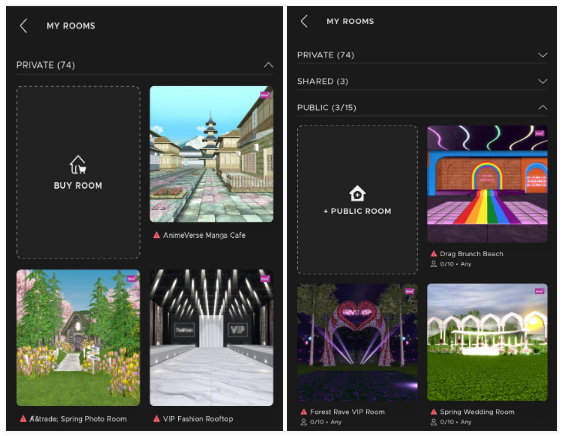
Public Rooms
These are the rooms you set to Public using a Chat Room Slot. Public Rooms on the mobile app feature Room Management Settings like:
Changing the Room Name
Setting the language of the room
Setting Max Occupancy
Adding a Description
Setting the Access Controls (AP, VIP, Age Verified, Friends Only)
Adding Moderator(s)
Most of the Room Management Settings can only be seen when the room is set to Public. Private rooms don't have other settings (i.e., you cannot change the room name yet).
Public Room Links
Public Rooms have a shareable direct link to the room. Selecting the Share icon, and then copying the Room Link will copy the link to your phone’s clipboard and allow you to share it in messages, feed, or anywhere else!

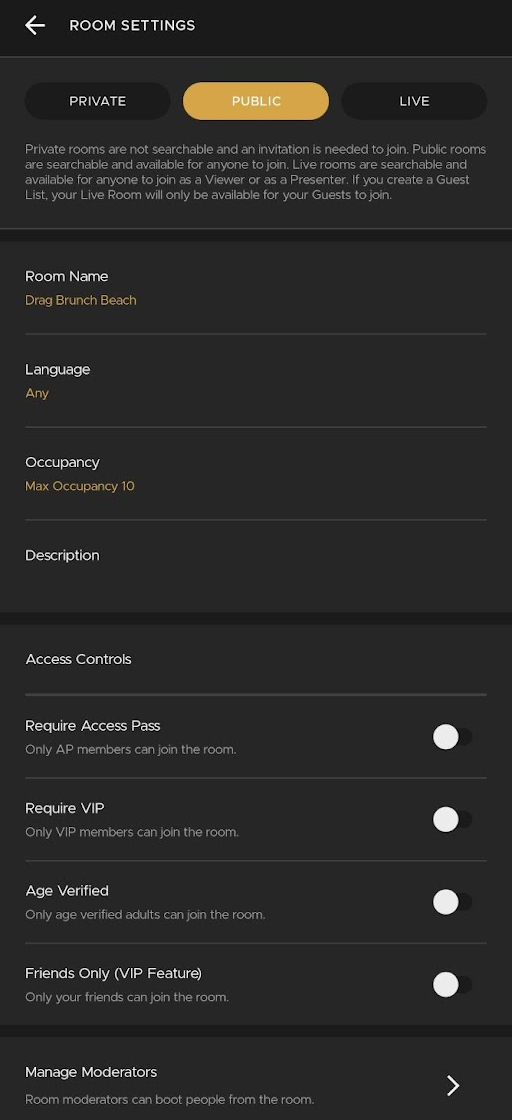
Room Management Settings
1. Public/Private Tab. On the top part of the Room Settings page, you can choose the tab whether to make your room Private or Public. Room owners can have as many Private Rooms as they want depending on the number of Room Shell Products they have, but they will need to have a Chat Room Slot to make their room Public.
2. Room Name. Room owners can use this field to change the Room Name. This field cannot be left blank, and inappropriate names are not allowed. There is also a 255 character limit to naming your room.
3. Language. This can be used to change the Language setting of the room. Available options are:
Any
English
Chinese
Japanese
Korean
Russian
Spanish
Portuguese
German
French
Indonesian
Italian
Dutch
Turkish
Swedish
Danish
Arabic
Norwegian
Polish
Hungarian
4. Occupancy. You can change the Max occupancy for your room from 3 to 10 users.
5. Description. Room owners can add descriptions or tags in this field. It has a 255 character limit.
6. Access Controls. Room owners can use the toggles here to only allow specific users to enter the room. Note that if you do not have a VIP subscription, Age Verification, or Access Pass, the toggle will be disabled for you. The current options are:
Require Access Pass
Require VIP
Age Verified
Friends Only (VIP feature)
7. Moderators. Room owners can add or remove moderators using this setting. Moderators can help manage the room and boot people. The room owner also has to be friends with the user they want to have as a moderator.
Inviting to Chat
No matter if your friends are enjoying IMVU on their iOS or Android phone, IMVU website, or the Desktop app, they will be able to accept your invitation for some fun in your room!
STEP 1. Tap the Invite button.

STEP 2. Select whom you want to invite from the list of your online friends that will show. Pay attention to your room limit, which is typically ten users total. Enjoy chatting!
Booting Avatars
Room Owners and Moderators now have the ability to boot other users in the Room. Please note the following:
Room Owners can boot Moderators
Moderators cannot boot Room Owners
Moderators cannot boot other Moderators
Room owners or Moderators should be inside the 3D room when they boot users.
The steps on how to boot users on IMVU Mobile can be found here: http://im.vu/help952
Room Bundles
Room Bundles are also available on the Mobile app! Ready to purchase? Check out this article on how to shop for your new room: http://im.vu/help949
After you make a successful Room Bundle purchase, a new tile will appear under your “Private” rooms. Once you see it, you can start using the room and inviting your friends to it. Mobile room bundles can also be accessed on any IMVU platforms!
Was this article helpful?
That’s Great!
Thank you for your feedback
Sorry! We couldn't be helpful
Thank you for your feedback
Feedback sent
We appreciate your effort and will try to fix the article