Share this article! Here's a short link you can use: http://im.vu/help1119
Room Hashtags help make it easier to discover conversations, communities, and rooms that match your interests on IMVU. Hashtags shown on room cards are generated based on the interests of people currently in the room, helping you quickly identify rooms that may be relevant to you.
Hashtags on Room Cards
When viewing a room card, you may see up to three hashtags displayed.
These hashtags are selected based on:
- The most common hashtags used by people currently in the room
- Trending hashtag activity across IMVU
- Overall hashtag popularity
If multiple hashtags are equally popular in a room, hashtags that also appear on your own profile may be prioritized first. If nobody in the room has hashtags associated with their profile, the hashtag section will not appear on the room card.
Shared vs. Non-Shared Hashtags
- Gold Hashtags: These indicate that the hashtag is already on your profile, highlighting shared interests
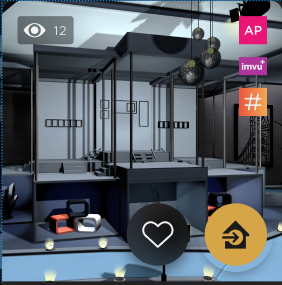
- If you share one or more of a room's top three hashtags, a # badge icon will also appear on the room tile.
- Grey Hashtags: These indicate hashtags not currently on your profile
Accessing Hashtags Menu
You can long-tap a hashtag on the room card to bring up a menu with the following actions.
Add to Profile or Remove from Profile
Action depends on whether the hashtag is already on your profile
Find Room
Search for other rooms with the selected hashtag
Not Interested
Selecting ‘Not Interested’ helps improve your future recommendations by telling IMVU you are not interested in content related to that hashtag.
This action will also:
- Remove the hashtag from your profile if it was previously added
- Reduce recommendations related to that hashtag going forward
You can undo this action while still viewing the same room card. Once you leave the card, the action can no longer be undone. If needed, you can manually re-add the hashtag to your profile later.
Report
Report hashtags that are inappropriate or violate IMVU guidelines. Reporting a hashtag also serves as feedback for your recommendations, so rooms associated with that hashtag may appear less often.
You Might Also Like Rooms
Some room cards may include a You Might Also Like section. These recommendations are based on shared hashtags and similarities between rooms, helping you discover other active communities with related interests.
The order of recommended rooms may vary based on your own interests, activity, and profile hashtags.
Personalized Room Recommendations
The For You section on the Chat landing page recommends rooms based on hashtags you share with people currently active in those rooms.
Recommendations may change as:
- You add or remove hashtags from your profile
- Room activity changes
- You refresh the page
- You mark hashtags as “Not Interested”
If no matching rooms are available, you may be prompted to add hashtags to your profile to improve recommendations.
Why You’re Seeing This Room
Click the three-dot menu in the upper-right corner of a room card to view the hashtags associated with that recommendation.
From there, you can:
- See which hashtags influenced the recommendation
- Select the thumbs-down icon to stop specific hashtags from influencing future recommendations
Searching Rooms by Hashtag
You can search for rooms using hashtags as a filter to find communities that match your interests.
Search results are influenced by:
- The number of users in the room using the hashtag
- Room activity and occupancy
- Existing room ranking signals
You can search using up to three hashtags at the same time.
When multiple hashtags are used together, search results function as an AND search, meaning rooms must match all selected hashtags to appear in results.
Example: Searching for “music + gaming” returns rooms where users currently share both hashtags.
Restricting Hashtags in Your Room (Room Host Only)
Room Hosts can restrict hashtags from being associated with their rooms.
Restricted hashtags:
- Will not appear on room cards
- Will not appear in icebreaker prompts
- Will not be associated with the room, even if visitors use those hashtags
Additional details:
- Room Hosts can restrict up to 100 hashtags per room. This limit is subject to change as we continue to improve and optimize the feature.
- In shared rooms, restrictions added by any co-owner apply to the room for everyone
How to restrict a hashtag:
- Go to My Rooms
- Click on the Restricted Hashtags section
- Select Add to Restricted List
- Search for and select the hashtag you want to restrict
You can add or remove restricted hashtags at any time from the Restricted Hashtags settings page.
Was this article helpful?
That’s Great!
Thank you for your feedback
Sorry! We couldn't be helpful
Thank you for your feedback
Feedback sent
We appreciate your effort and will try to fix the article